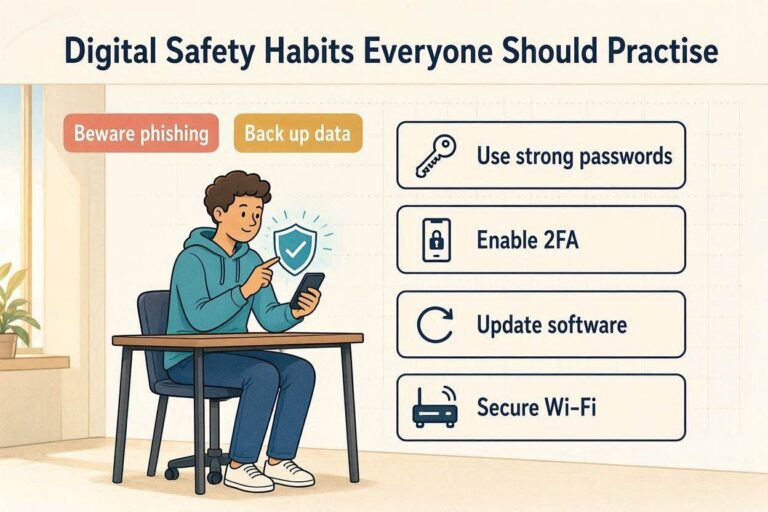


Every time you enter a website, you are making a decision to trust it with your attention, data, or money. That trust might involve entering your email address, creating an account, making a purchase, or downloading software. While millions of websites are safe and legitimate, a growing number are designed specifically to deceive users.
Fake websites have become increasingly sophisticated. Many now closely mimic real businesses, copy branding, and even use secure-looking designs that appear trustworthy at first glance. Because of this, visual appearance alone is no longer a reliable way to determine whether a website is safe.
Knowing how to evaluate a website properly is an essential digital skill. It helps you avoid scams, protect your personal information, and make safer decisions online.
This guide breaks down practical, real-world methods you can use to check whether a website is legitimate before you trust it.
Why It Matters
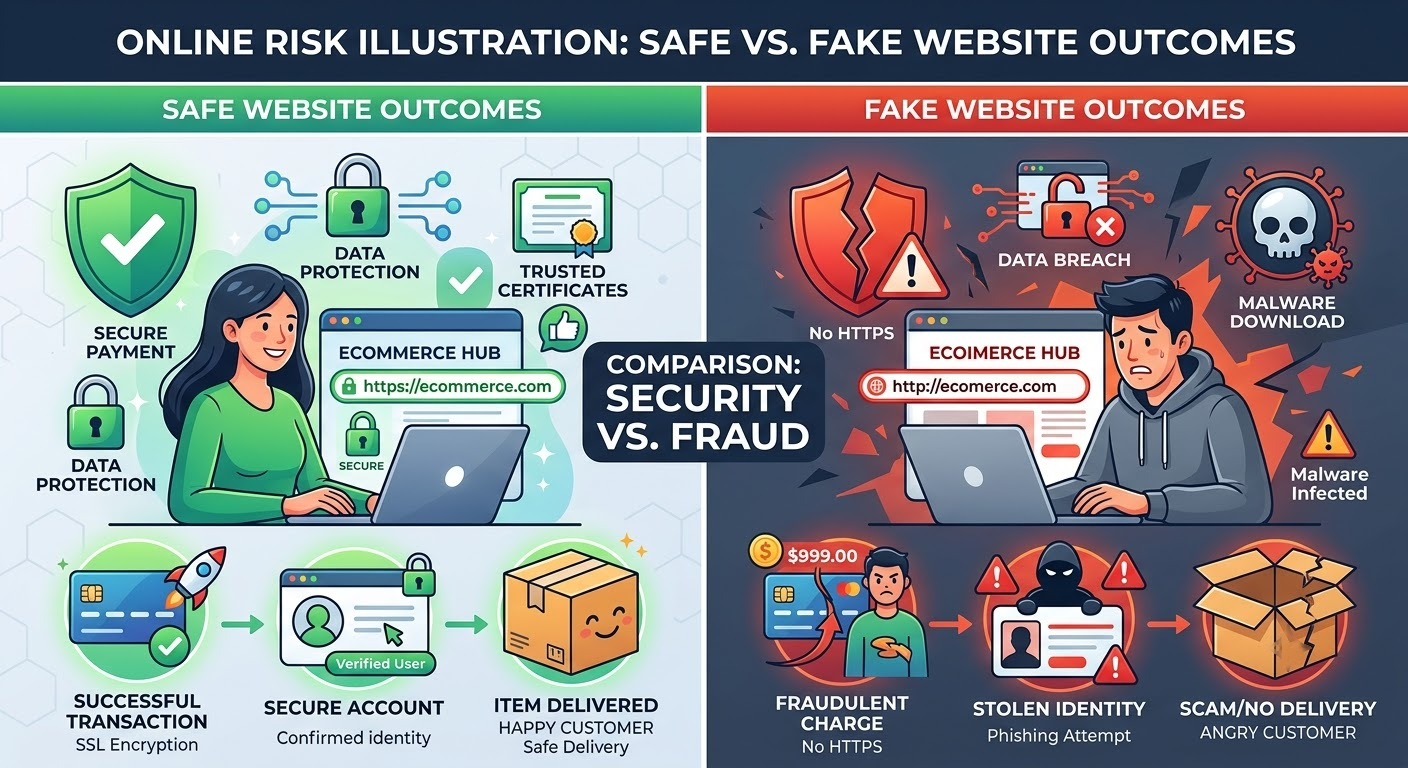
The consequences of trusting a fake website can be serious. Cybercriminals design fraudulent websites to trick users into revealing sensitive information or making payments for fake services or products.
If you fail to verify a website, you may face risks such as:
- Financial loss from fake purchases
- Identity theft from stolen personal data
- Phishing attacks targeting your accounts
- Malware infections from unsafe downloads
- Unauthorized subscriptions or charges
- Compromised passwords and emails
Even experienced internet users can be fooled by well-designed scam websites. That’s why verification should become a habit before interacting with any unfamiliar platform.
Step-by-Step Guide
Step 1: Carefully Inspect the Website URL
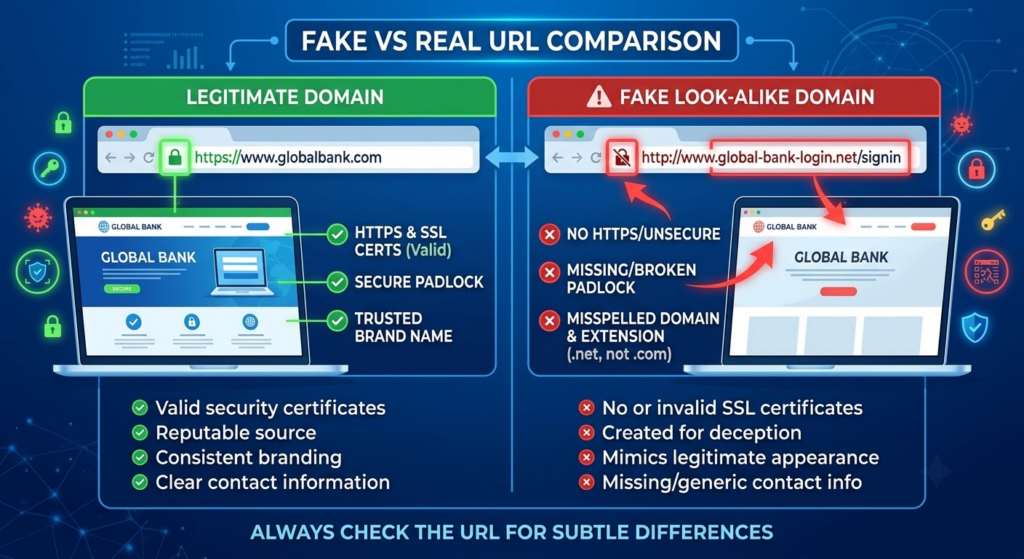
The first and most important step is to check the website’s domain name.
Scam websites often rely on small visual tricks such as:
- Changing letters (e.g., “paypaI.com” instead of “paypal.com”)
- Adding extra words (e.g., “secure-login-paypal.com”)
- Using uncommon extensions (.xyz, .top, .info)
- Slight spelling changes that are easy to miss
Always read the full URL carefully instead of trusting what is displayed in banners or logos.
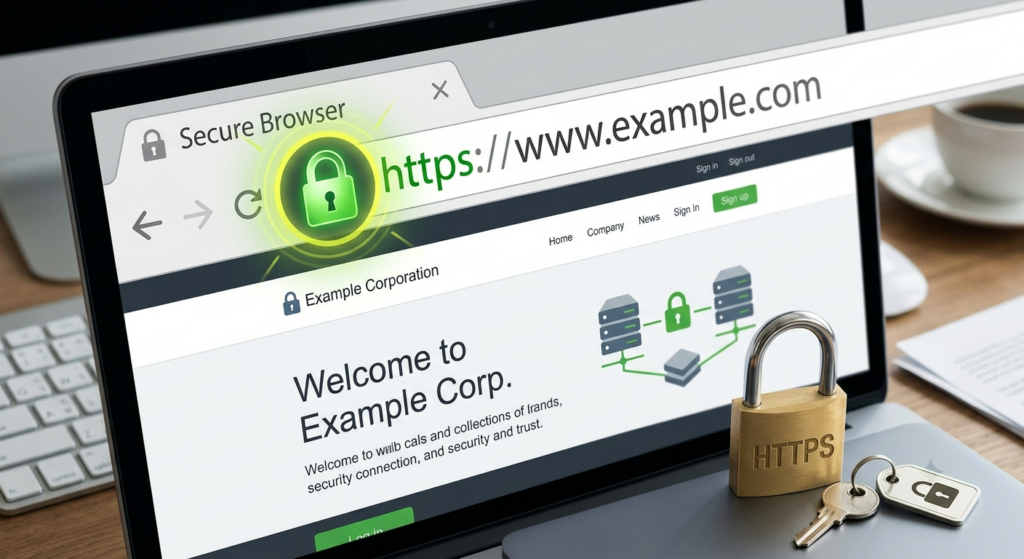
Step 2: Check if the Website Uses HTTPS
Look for https:// and the padlock icon in the browser address bar.
HTTPS means the connection between your device and the website is encrypted. This protects sensitive data such as passwords and payment details from interception.
However, HTTPS alone does NOT guarantee legitimacy. Even fraudulent websites can use SSL certificates. It only means the connection is secure—not that the website is trustworthy.
Step 3: Investigate the Website’s Contact Information
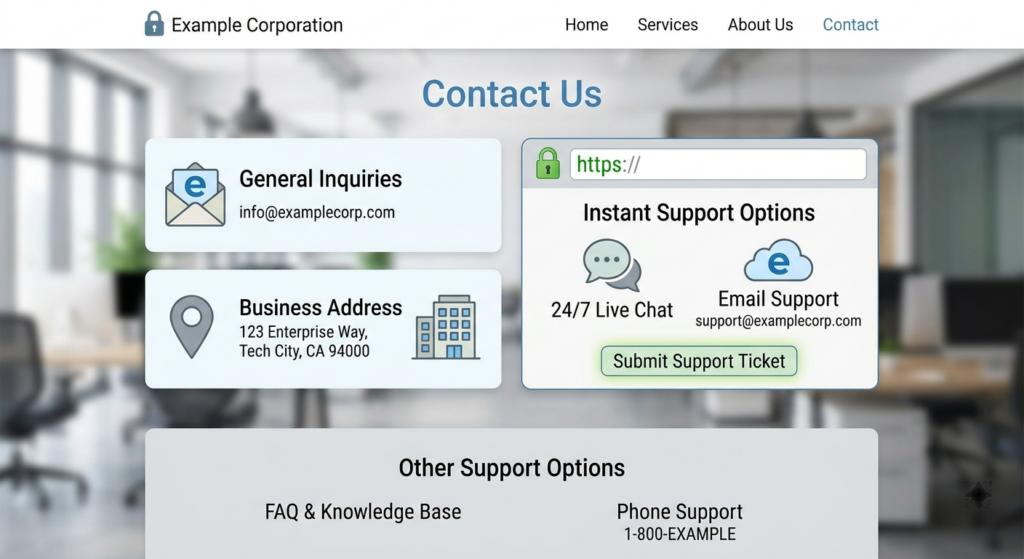
Legitimate businesses are usually transparent about how users can reach them.
Check for:
- Physical business address
- Customer support email
- Phone number
- Help center or contact form
Be cautious if:
- No contact details are available
- Only a generic email is provided
- Information looks copied or fake
- The business refuses direct communication
Transparency is a strong indicator of legitimacy.
Step 4: Analyze the About Page
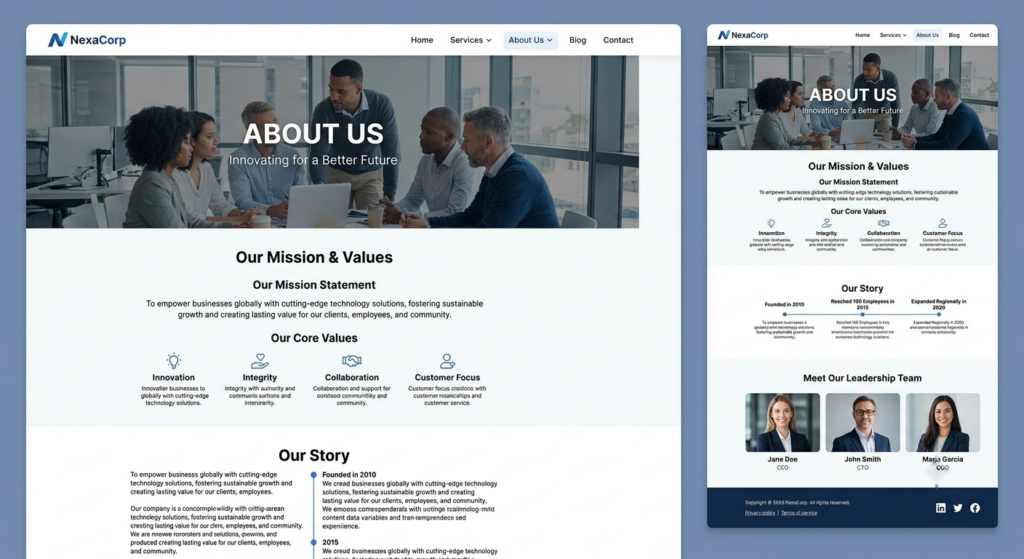
The About page provides insight into who is behind the website.
A legitimate website usually includes:
- Company background
- Mission or purpose
- Founding information
- Team or leadership details
Watch out for:
- Vague descriptions
- Copy-pasted text
- Missing company identity
If a website cannot clearly explain who they are, that is a warning sign.
Step 5: Check Website Design and Quality
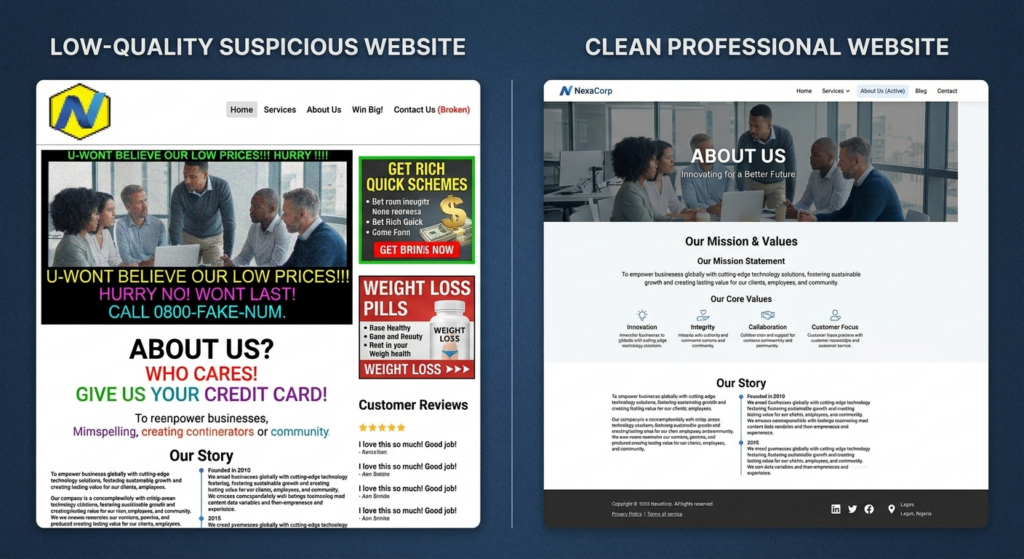
A website’s appearance is not proof of legitimacy, but poor quality often signals lack of professionalism.
Warning signs include:
- Spelling and grammar errors
- Broken pages or links
- Low-quality images
- Inconsistent design
- Excessive pop-ups
- Confusing navigation
Scam websites often prioritize speed over quality, leading to noticeable design flaws.
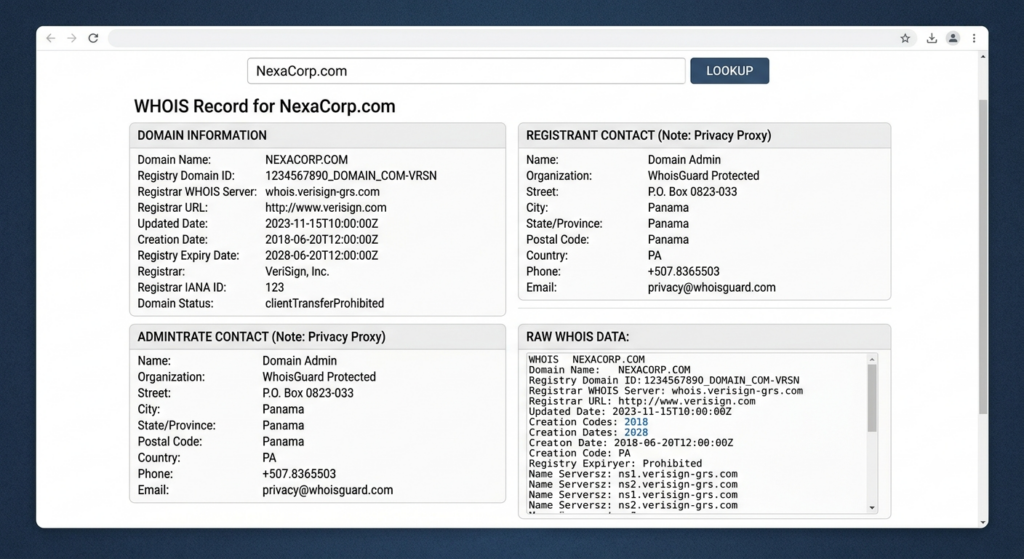
Step 6: Perform a WHOIS Domain Check
A WHOIS lookup shows information about a website’s domain registration.
It can reveal:
- Domain age
- Registration date
- Registrar details
- Ownership information (sometimes hidden)
Newly registered domains are not automatically scams, but if a website claims to be a long-established brand with a recently created domain, that is a red flag.
Step 7: Look for Independent Reviews
Do not rely only on testimonials shown on the website itself.
Instead:
- Search for external reviews
- Check forums or discussion platforms
- Look for consistent user experiences
- Be cautious of overly perfect ratings
Fake websites often create fake reviews to appear trustworthy.
Step 8: Review Policies and Legal Pages
Legitimate websites usually provide clear:
- Privacy Policy
- Terms and Conditions
- Refund Policy
- Shipping Policy
Missing or unclear policies are a strong warning sign that the website may not be reliable.
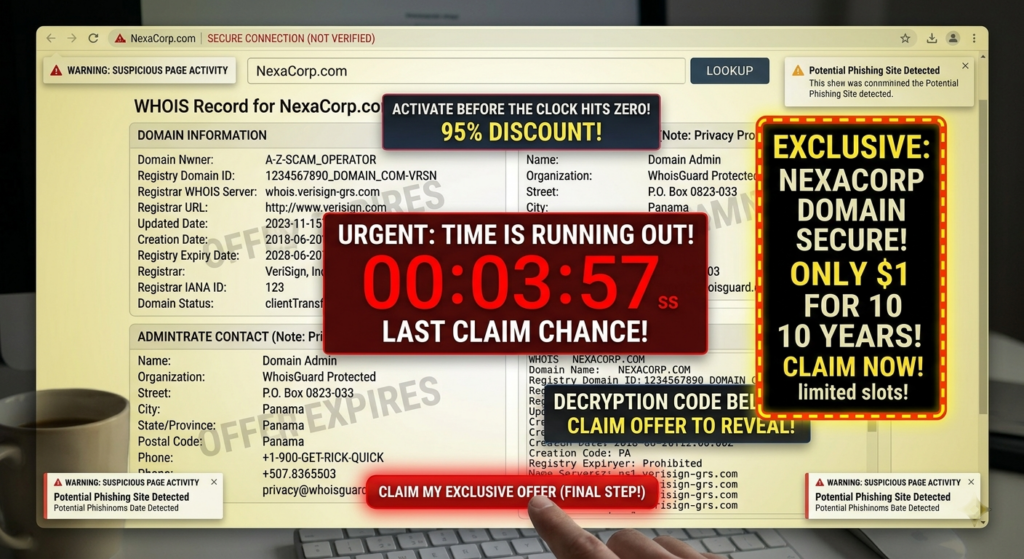
Step 9: Check for Unrealistic Offers
Be cautious if a website offers:
- Extremely low prices
- Guaranteed profits
- “Too good to be true” deals
- Urgent countdown timers
- Pressure to act immediately
Scammers often use urgency to reduce critical thinking.
Step 10: Check Payment Methods
Trusted websites usually support secure payment systems such as:
- Credit cards
- PayPal or similar services
- Verified payment gateways
Avoid websites that only accept:
- Cryptocurrency (without context)
- Bank transfers to unknown accounts
- Irreversible payment methods
Secure payment options offer better protection if something goes wrong.
Step 11: Check Security Reputation
Search whether the website has been flagged for:
- Phishing
- Malware
- Fraudulent activity
Security tools and browser warnings can help identify known dangerous websites before you interact with them.
Step 12: Trust Your Instincts
If something feels wrong, it often is.
Even if a website passes several checks, multiple small warning signs combined may indicate risk.
Taking a few extra minutes to verify can prevent major losses.
Tips
- Always double-check URLs before entering data
- Use multiple verification methods together
- Don’t rush purchases due to pressure tactics
- Cross-check reviews from different sources
- Use secure browsers and updated devices
Common Mistakes
- Trusting HTTPS alone
- Ignoring small spelling differences in domains
- Believing only on-site reviews
- Falling for urgency timers
- Sharing data too quickly
Best Practices
- Verify before entering sensitive information
- Use WHOIS and domain checks when unsure
- Research websites independently
- Look for transparency in business details
- Combine multiple signals instead of relying on one
Frequently Asked Questions
Can a website look professional but still be fake?
Yes. Many scam websites are professionally designed to appear legitimate.
Is HTTPS enough to trust a website?
No. It only secures communication, not legitimacy.
What is the safest way to verify a website?
Use multiple checks such as domain analysis, reviews, and contact verification together.
Should I trust new websites?
Not automatically. New websites require extra verification.
Conclusion
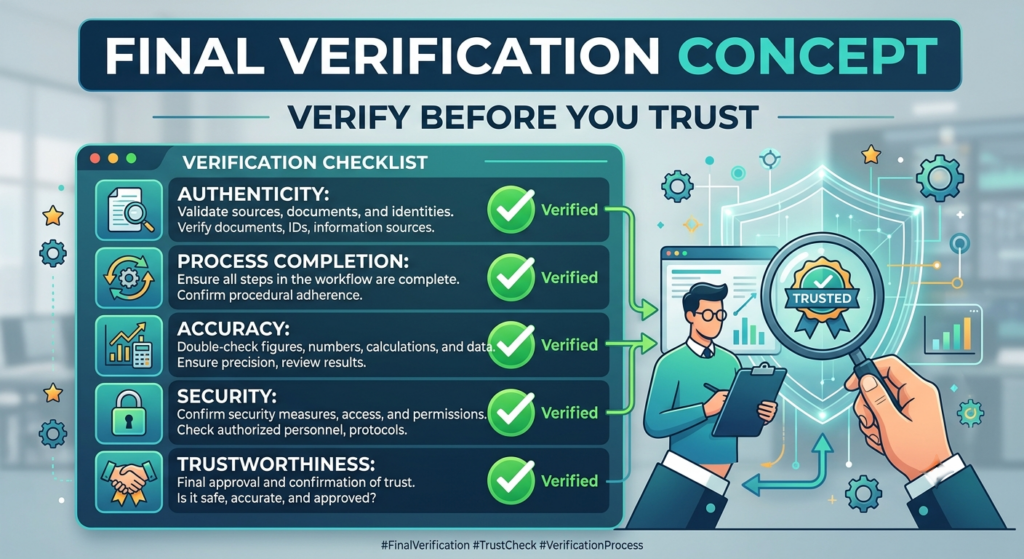
Verifying a website before using it is one of the most important online safety habits you can develop. No single method is perfect, but combining multiple checks significantly reduces the risk of falling victim to scams.
By consistently evaluating websites before trusting them, you strengthen your digital safety and protect your personal and financial information.